
[Cloud release: 2026.08.27]
[On-prem release: Expected September 2026]
[On-prem build: tbd]
Use the Calculation Editor when you need to add custom calculations to your crosstabs or charts in dashboards and reports.
The Calculation Editor offers a rich interface for making complex calculations without any prior knowledge to the TARGIT calculation syntax.
Adding a calculation
To add a calculation to an object, make sure your Designer client is in Designer mode.
Then, select the object you want to add the calculation to and go to the Calculations Smartpad to add the calculation as a Column, as a Row, as a Measure, or as a Predefined calculation.
The Column, Row and Measure terms may make most sense when the object type is a crosstab. However, calculations can also be added to charts - like line charts, column charts, etc. For a chart, you may consider displaying the data as a crosstab (using the Show data option) when adding a calculation to it.
You have four options for adding a calculation to your object:
-
Columns.
- This will add a calculated column as a new column to the right of the crosstab.
-
Rows.
- This will add a calculated row as a new row at the bottom of the crosstab.
-
Measures.
- This will add a calculated measure next to existing measures in your crosstab.
- E.g., if your crosstab is created from two measures together with a dimension on the horizontal axis, then these measures will be repeated for each dimension member along the horizontal axis, and the calculated measure will be added as if it was a third measure - next to the two original measures.
-
Add predefined calculation.
- This will open a list of predefined calculations. Use the search field for an instant search on predefined calculations names. Note that many of the predefined calculations comes in different versions, for being applied as a column, as a row or as a measure.
Example: If you add a new calculated column to your crosstab, the Calculation Editor interface will open like this:
The Interface
Calculations Smartpad
The Calculations Smartpad is one of the tabs in the Smartpad panel on the left in the TARGIT Designer client.
- Add new calculations. Click the 'Plus' buttons to add new calculations.
- Pin, Edit, Delete. As you add new calculations to your object, the calculations will be listed here, with options to Pin to top/left, Edit and Delete.
- Copy/Paste. Right click a calculation in the Smartpad to copy/paste the calculation.
- Move up/down. Drag calculations to change the order of calculations.
Object Area
When you add a calculation to an object in a dashboard or report, the object will be displayed in the upper half of the Calculation Editor.
- Apply to update. When editing calculations, the object will update every time you click the Apply button.
- Insert/edit expressions. When editing calculations, you can click anywhere in the object to insert or to edit expressions.
- Document tabs. The tabs above the object area allow you to keep other documents open while editing a calculation. Among other things, this will give you an option to copy calculation syntaxes from other documents that can be pasted and used in your current calculation.
-
Hidden content. If your object contains hidden content - hidden by the general Visibility options, or hidden by Visbility agents - you will be able to show/hide hidden contain by use of the Eye icon at the bottom of the object area:
-
Show data (show crosstab). If your object is a chart, you can show the chart as data (as a crosstab) in the object area:
Syntax Field
The lower half of the Calculation Editor is reserved for creating and editing the calculation syntax.
- Calculation title: This is the title of the calculation and the name that it will appear with in the object. Furthermore, you have options to translate the title to other languages and to work with number formatting of the calculation.
- Calculation ID: Each calculation requires a unique ID. When referring to a calculation from another calculation, the ID is used for reference. The IDs are auto generated like CalcColA, CalcColB, etc., however, you can rename the ID to your preference - e.g., you may consider renaming the IDs so that they are identical to the titles - as long as the IDs are unique.
- Description: Add context to your calculation - e.g., an explanation on what it does. The description may be translated to other languages.
- Type. You may change the type of the calculation: Column, Row, Measure. If you do this, be aware that expressions created for one type calculations may not work for other types of calculations without modifications.
- Apply to calculated row/column. If you added both calculated columns and calculated rows to the object, the intersection between those calculations will be empty by default. Use this option to decide if the expression in the calculated column should work for the calculated row values, or vice versa, if the expression in the calculated row should work for the calculated column values.
- Open multiple calculations in tabs. You can open multiple calculations from the Calculations Smartpad. Each calculation will be opened in a tab above the editor area.
- New tab = New calculation. Clicking the '+' button in this tab bar will create a new calculation (defaulting to a Column type calculation).
- Apply. The Apply button will apply any changes you made to your syntax to the object in the object area. Even incomplete syntax or expressions with syntax errors will be saved when you hit the 'Apply' button. In this way, you are able to save complex work-in-progress calculations with the intention to complete it in a later session.
- Close. The Close button will close the Calculation Editor and return the object - with applied calculations - to its parent dashboard or report.
The basics of a calculation syntax
Before looking into the options for creating or editing the calculation syntax, it might be helpful to understand the core concept of a TARGIT calculation syntax expression.
The core elements of an expression are these:
[function]([column reference], [row reference], [measure reference])As an example, look at this crosstab:
This crosstab can be described as having:
- 4 columns: The time dimension with four years across the horizontal axis.
- 14 rows: The Country dimension with fourteen countries down the vertical axis.
- 2 measures: Revenue and Costs, being repeated for each of the Year columns.
Note that the Totals (the columns and rows in bold) are not included when counting columns and rows in this way.
Adding a predefined calculation
When you click the Add predefined calculation option, you will be presented with a list of predefined calculations.
- Use the Search option to locate the calculation that you require.
- Hover the information icon to get additional description.
The predefined calculation will be appear in the list of existing calculations as either a column, a row or a measure calculation, according to their type.
Initially, they will have a generic name like 'CalcMeasA'.
To edit a calculation from the list, click the Edit button of the calculation:
When editing a calculation, you can at any time replace the existing calculation with a predefined calculation. In the editor, the Select calculation dropdown will list all predefined calculations:
Note: When using this method for selecting a predefined calculation, the current calculation will be overwritten and replaced by the new predefined calculation.
Tip: If you need to combine the syntaxes of two predefined calculations, e.g., to subtract the average value from the maximum value, first temporarily add these two predefined calculations as two separate calculations (i.e., add both from the Smartpad), then copy the syntax from one calculation to paste it together with the syntax of the other calculation.
Editing a calculation syntax
If you just added a calculation, e.g. a Column calculation, the syntax would default to a single expression like this:
sum(d-1, 0, @"Revenue")Here, the expression is using the sum function - summing up what is being referred to within the parentheses. The column reference, d-1, refers to the last column (the 2026 column). The row reference, 0, refers to each row (i.e., for each calculated cell in the calculated column, it picks a value from the its own row). The measure reference, @"Revenue", refers to the Revenue measure in the object.
This expression results in CalcColA being a copy of all the Revenue values in the 2026 column:
You can edit the expression in different ways:
- Click crosstab to edit expression. You can place the cursor in one of the reference elements (column, row or measure) in the expression and click in the crosstab in the object area to change the references.
- Use controls to edit expression. You can place the cursor in one of the reference elements (column, row or measure) in the expression and use Column, Row and Measure controls to change the references.
- Click crosstab to insert new expression. You can place the cursor outside the expression and click in the crosstab in the object area to insert a new expression.
- Use dropdown to insert new expression. You can place the cursor outside the expression and us the Functions dropdown to insert a new expression.
- Manually editing the syntax. At any time, you can customize the syntax and the expression by manually typing into the syntax editor.
Click crosstab to edit expression
Taking the example from above, sum(d-1, 0, @"Revenue"):
- Changing column reference. If you place the cursor in d-1 and then click at the 2025 column in the crosstab, the column reference will change to d-2. If you click the 2024 column, the reference will change to d-3, etc.
- Changing row reference. If you place the cursor in the row reference, the 0 in the expression, and then click the Sweden row in the crosstab, the row reference will change to @"[Sweden]"(l"Customer Country.Customer Country").
- Changing measure reference. If you place the cursor in the measure reference, the @"Revenue" in the expression, and then click one of the Costs columns, the measure reference will change to @"Costs".
Having performed these clicks, the expression might now look something like this, where each of the calculated cells results in the same value: Costs for Sweden in 2024.
Use controls to edit expression
-
Function. E.g., cursor positioned in "sum" in example.
- The Control on the right will list all relevant functions that can be used with the current expression. Select any function from the list to replace the current function.
-
Column reference. E.g., cursor positioned in "d-1" in example.
- The Control on the right will list all relevant column reference types that can be used with the current expression. Select any reference type from the list to replace the current column reference.
-
Row reference. E.g., cursor positioned in "0" in example.
- The Control on the right will list all relevant row reference types that can be used with the current expression. Select any reference type from the list to replace the current row reference.
-
Measure reference. E.g., cursor positioned in "@"Revenue"" in example.
- The Control on the right will list all relevant measures or calculations that can be used with the current expression. Select any reference type from the list to replace the current measure reference.
Out of scope values and expressions
If you are getting a result like this, your calculation may be out of scope.
If your initial expression for any reason is out of scope (i.e., contains a reference that exceeds the definition of the crosstab) this will very often lead to an "Undefined" result or otherwise misleading result.
To prevent this, in the expression, you can add an additional element after the measure reference.
Example: sum(d-4, 0, @"Revenue", 0).
In this example, if your crosstab contains 3 columns only, then the "d-4" reference will exceed the number of columns in your crosstab, and the result will become "Undefined". However, setting the out of scope value to "0" ensures that the expression will then return "0" instead of "Undefined".
You can insert any numeric value as your out of scope value.
You can even insert a full expression like this: sum(d-4, 0, @"Revenue", sum(d-1, 0, @"Revenue").
Click crosstab to insert expression
If you need to add new expressions to your calculation, e.g. to subtract two values, you can do this by first placing the cursor outside any existing expressions and then clicking in the crosstab.
In the following example, the user has added the "-" operator after the initial expression sum(d-1, 0, @"Revenue") and then clicked the 2026 Costs column to insert the expression sum(d-1, 0, @"Costs").
The syntax of the inserted expressions will respect the default rules of the current calculation type: Column, Row or Measure type. I.e.:
- Column type: The column reference and the measure reference will respect what you click. The row reference will be zero (each) by default.
- Row type: The row reference will respect what you click. The column reference and the measure reference will be zero (each) by default.
- Measure type: The measure reference will respect what you click. The column reference and row reference will be zero (each) by default.
Dropdowns to add or modify expression
Use the dropdowns, located just above the syntax editor field, to add or modify expressions.
Functions
Select a function from the Functions dropdown. Place the cursor inside an existing expression to replace the function. Place the cursor outside existing expressions to add a new expression with that function.
Operators
Use the Operators dropdown to list or to select the available operators.
Result Modifier
Result Modifiers can be used to modify an existing expression. Place the cursor inside the expression before adding the Result Modifier. Some of the result modifiers require you to enter additional values, e.g., number of decimals.
Reference Modifiers
Use Reference Modifiers to ensure that an expression only calculates the visible or the hidden members in a table where visibility features, such as Visibility Agents, are applied.
Place the cursor in the row reference (if rows have been hidden) or in the column reference (if columns have been hidden) to add either a Visible modifier or a Hidden modifier.
Likewise, if the rows (or the columns) are part of a hierarchy, place the cursor in the row reference (or the column reference) to add Level, Children, Siblings or Leaves modifiers.
Show References
These settings will affect how measures, calculations and dimensions are displayed in the crosstab.
See this article: References by name
Manually editing the syntax
For reference, the new Calculation Editor does not invalidate syntaxes or expression written in older versions of the TARGIT Decision Suite. E.g., "old school" syntax like sum(d-1, 0, m1) still works perfectly fine.
Syntax Validation
The Calculation Editor uses a syntax checker to highlight any errors in your calculation syntax.
Errors will be highlighted with squiggly lines directly in the syntax and with a red syntax check LED on the right side of the syntax field. When no errors or warnings are encountered, the syntax check LED will be green.
Place the cursor in one of the squiggly lines to get more details about the error and to select a potential Quick Fix.
You can also use keyboard shortcuts:
- Alt+F8 to highlight the error and see more details
- CTRL+. to suggest a potential Quick Fix
Column and Row reference types
When editing column and row references, you can use the controls on the right of the syntax editor to select the proper reference type.
Last. Inserts a reference to the last column/row.
- Column calculation example: sum(d-1, 0, @"Revenue")
- Row calculation example: sum(0, d-1, 0)
- Note: The control will change to "From last 1".
First. Inserts a reference to the first column/row.
- Column calculation example: sum(d1, 0, @"Revenue")
- Row calculation example: sum(0, d1, 0)
- Note: The control will change to "From first 1".
Each. Inserts a reference to each column/row.
- Column calculation example: sum(d-1, 0, @"Revenue")
- Row calculation example: sum(0, all, 0) (note that the measure reference, the last zero, can also be set to Each)
- Note: This is the most commonly used relative reference type that ensures that calculated cells are calculated from values from its "own" row (in a calculated column) or from its "own" column (in a calculated row).
All. Inserts a reference to a range of all columns/rows.
- Column calculation example: avg(all, 0, @"Revenue")
- Row calculation example: avg(0, all, 0)
From last. Inserts a reference to a column/row relatively to the last column/row.
- Example: From last 4
- Column calculation example: sum(d-4, 0, @"Revenue")
- Row calculation example: sum(0, d-4, 0)
From first. Inserts a reference to a column/row relatively to the first column/row.
- Example: From first 3
- Column calculation example: sum(d3, 0, @"Revenue")
- Row calculation example: sum(0, d3, 0)
Before each. Inserts a reference to a column/row relatively to each column/row.
- Example: Before each 1
- Column calculation example: sum(d-1, 0, @"Revenue") - sum(d-1, -1, @"Revenue") (calculates the difference between values in the current row and the previous row)
- Row calculation example: sum(0, all, 0) - sum(-1, all, 0) (calculates the difference between values in the current column and the previous column)
After each. Inserts a reference to a column/row relatively to each column/row.
- Example: After each 1
- Column calculation example: sum(d-1, 0, @"Revenue") - sum(d-1, 1, @"Revenue") (calculates the difference between values in the current row and the next row)
- Row calculation example: sum(0, all, 0) - sum(1, all, 0) (calculates the difference between values in the current column and the next column)
By name. Inserts a reference to a column/row using name references instead of relative references.
- Column calculation example: sum(@"[2026]", 0, @"Revenue"))
- Row calculation example: sum(0, @"[Asia].[Malaysia]", 0)
-
Note: It is recommended to click the relevant column/row in the table when using the By name reference type. This will insert the proper syntax - including level reference.
Example: sum(0, @"[Asia].[Malaysia]"(l"Customer Hierarchy.Customer Hierarchy.Country"), 0)
By key. Inserts a reference to a column/row using key references instead of relative references.
- Column calculation example: sum(@@"[Year].&[2026]", 0, @"Revenue")
- Row calculation example: sum(0, @@"[Territory].&[1].&[13]", 0)
-
Note: It is recommended to click the relevant column/row in the table when using the By key reference type. This will insert the proper syntax - including level reference.
Example: sum(0, @@"[Territory].&[1].&[13]"(l"Customer Hierarchy.Customer Hierarchy.Country"), 0)
Range. Inserts a reference to a range of columns/rows. Ranges are defined as [start-reference]:[end-reference].
- Column calculation example: sum(d1:d3, 0, @"Revenue"); sums first to third column
- Column calculation example: avg(d-1, -3:0, 0); averages four rows in the range from three rows before current row to current row
- Column calculation example: count(d-1, d1:0, 0); counts values from the first row to the current row
- Note: When setting the Start and End of a range, all of the other reference types can be used.
Total. Inserts a reference to the grand total of columns/rows.
- Column calculation example: sum(total, 0, @"Revenue")
- Row calculation example: sum(0, total, 0)
Calculations. Inserts a reference to an existing calculated column or calculated row.
- Column calculation example: sum(@"CalcColA", 0, 0)
- Row calculation example: sum(0, @"CalcRowA", 0)
Comments
Hello,
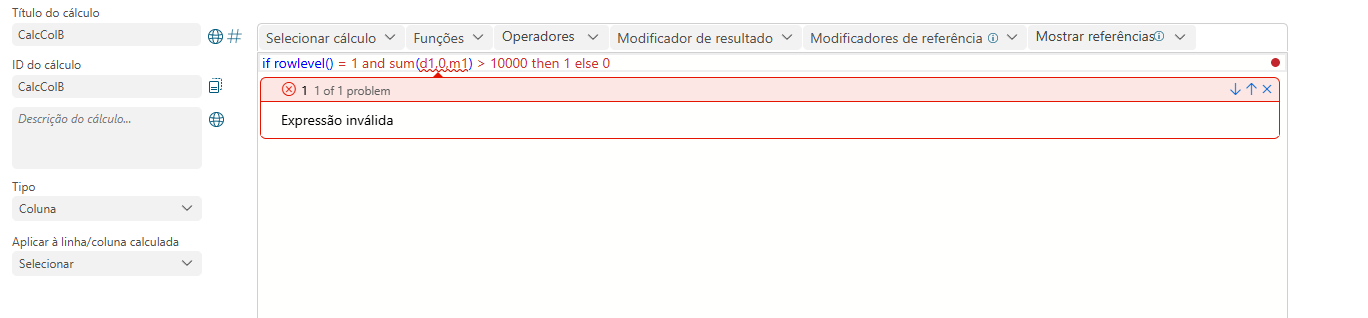
After updating TARGIT to the latest version, we noticed an issue with the expression editor when using the rowlevel() function within an IF statement.
For example, with the following expression:
if rowlevel() = 1 and sum(d1,0,m1) > 10000 then 1 else 0
The expression editor displays a validation error ("Invalid expression"), highlighting the subsequent part of the expression as incorrect.
We also noticed that the rowlevel() function is no longer listed in the available functions menu.
However, despite the validation error, the calculation still executes correctly and returns the expected results.
We would like to clarify the following:
Is the rowlevel() function deprecated or scheduled for removal in future versions?
Is this a known issue with the expression editor's syntax validation in the latest version?
Should we consider replacing or refactoring existing calculations that rely on rowlevel()?
We have several calculations that use this function, so we would like to understand whether any changes are required to ensure compatibility with future releases.
I've attached a screenshot illustrating the issue.
Thank you in advance for your assistance.
Please sign in to leave a comment.